

 How to add an existing Dashboard Tab consisting of a collection of existing Charts
Re-using existing Dashboard Tabs by simply adding them to your IMS Dashboard is a great way to save time. A Dashboard Tab consist of at least one but typically a number of Charts configured to display data for analytical and reporting purposes in IMS. You can either add or copy an existing Dashboard Tab.
To add, share, copy or delete an existing Dashboard Tab click 'Manage Tabs' in the top lefthand corner of the Dashboard menu.
Adding (ADD) a Dashboard Tab means you simply add an existing Dashboard Tab either you or another user has created, if it is created by another user you will not be able to modify it and can simply view the timeline linked data.
Copying (COPY) a Dashboard Tab means you are making a copy of an existing one, by copying you can then modify the Dashboard Tab and each of the Charts within it, allowing you to customise these for your specific dash-boarding, data analysis and reporting needs.
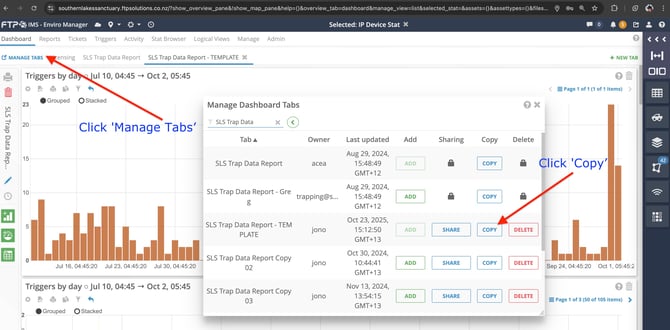
Sharing (SHARE) a Dashboard Tab means your Dashboard Tab with the Charts it contains becomes available for others to ADD to their Dashboard.
You can see who owns each Dashboard Tab by looking the Owner column.
You can see the last time the Dashboard Tab (including the Charts within it) were modified by looking a the Date & Timestamp in the Last Updated column.