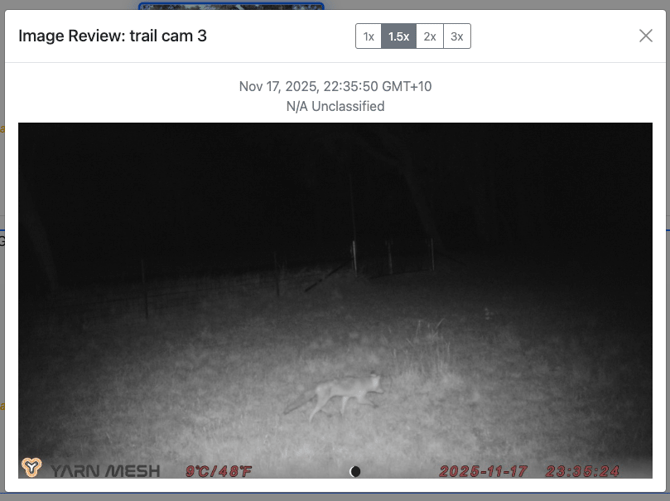
We will walk through the use of the Yarn Mesh Manager application at http://manage.yarnmesh.ai:5001 which will allow a user to understand how to log in, navigate the app, understand the network health and device health pages, and make any necessary changes to devices in the field.
- You must first have a username and password for an IMS server
- Browse to http://manage.yarnmesh.ai:5001/
- Enter your IMS server details, including the username and password for that IMS server:
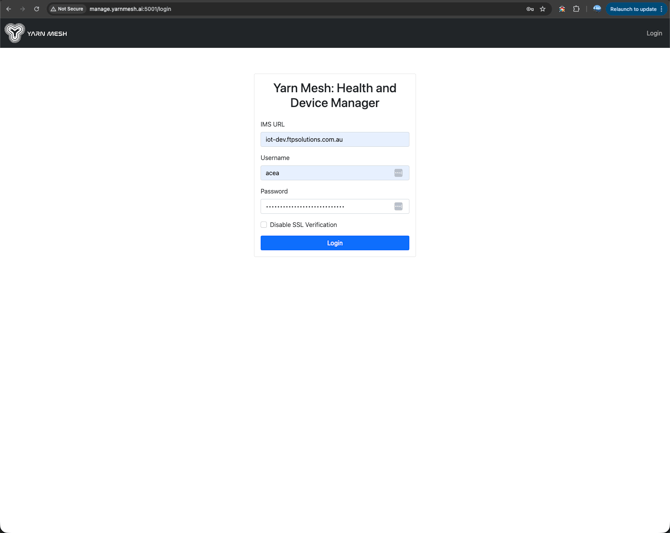
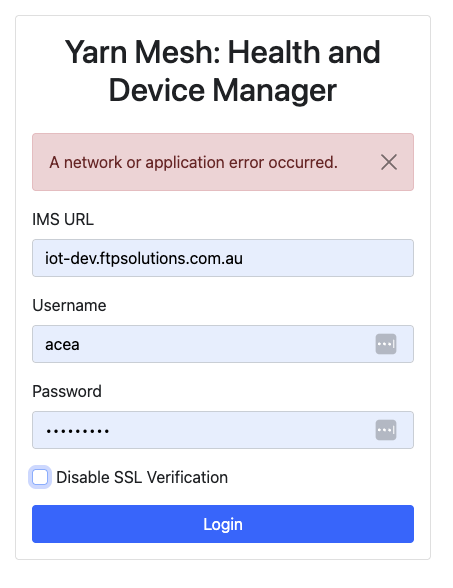
- Click the Login button. if you are using iot-dev credentioals you will need to check the Disable SSL Verification box:
- You will then be taken into the Yarn Mesh Manager, where you can see overall health of the Yarn Devices and Yarn Mesh:
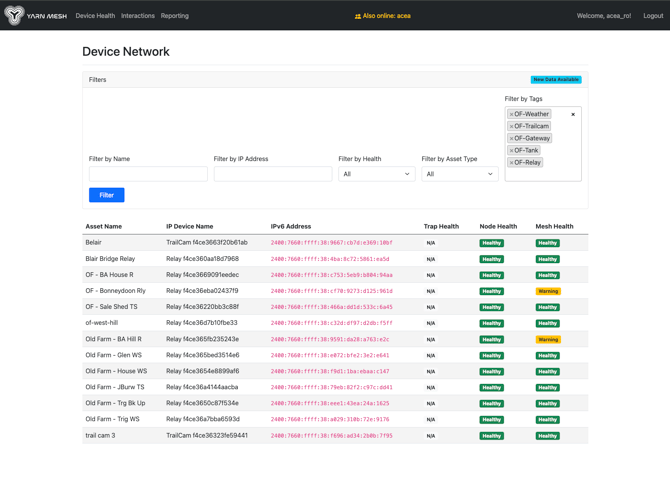
- If you'd like to dig into the device data relating to mesh health, node performance or battery/solar health, you can do so by clicking on any of the rows in the table. You can use the filter at the top of the page to ensure that you have the whole network or any of the device tags/names/types selected and filtered:
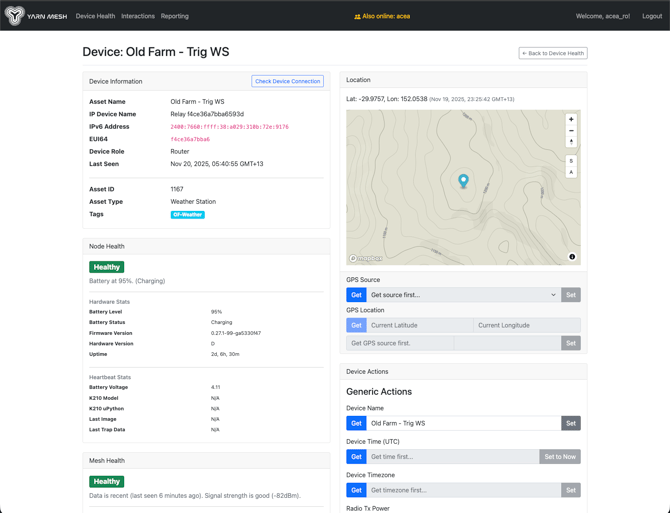
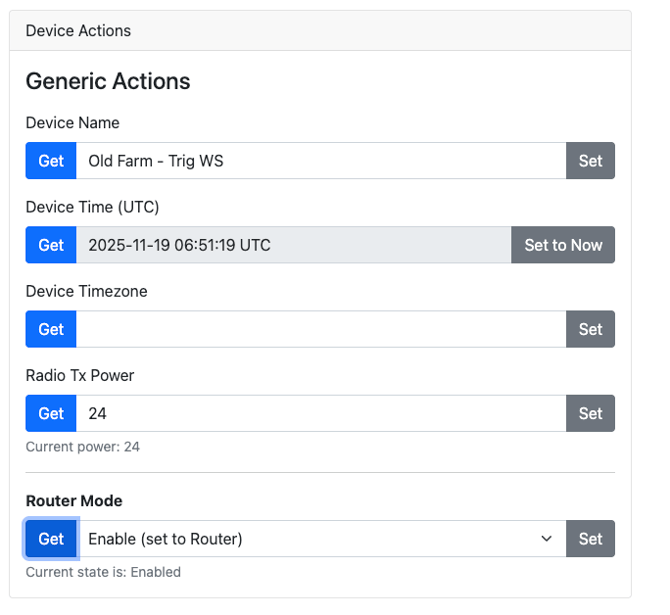
- You can use the device actions forms to get and set device data out in the field. You must Get before you can Set:
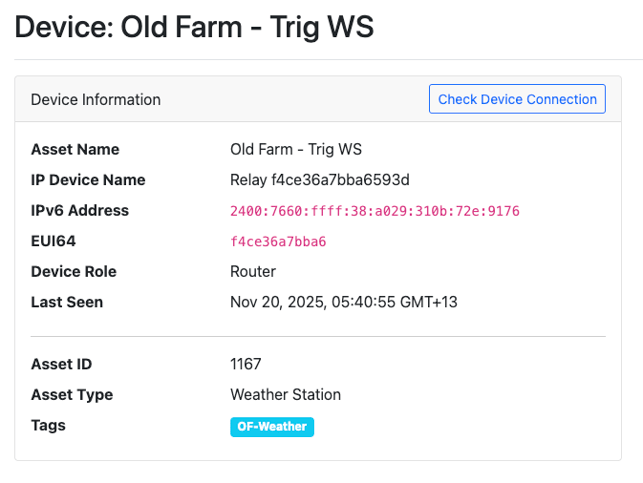
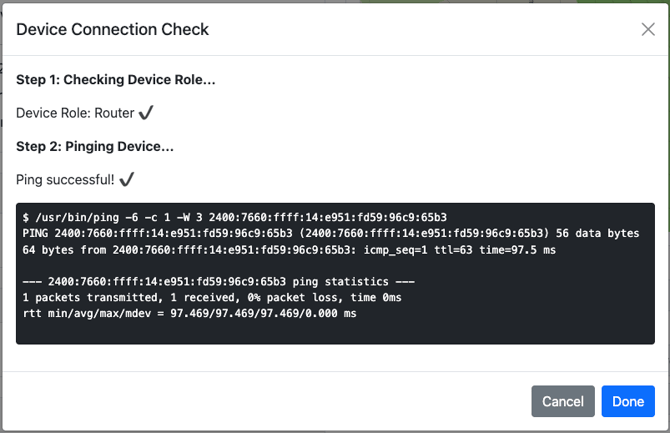
- If you get failures with any of the commands or you have an unhealthy device, you can check the devoce connection in real-time using the Check Device Connection button in the Device Information card:
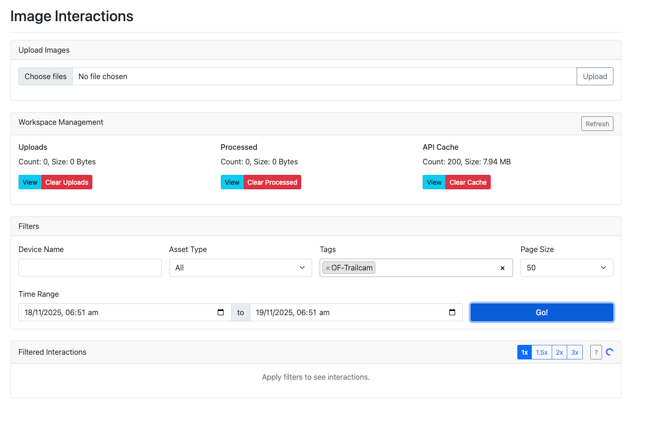
- You can review imagery from Trailcams and Traps using the Interactions Tab in the Navbar. Set any filters you want and click the Go! button:
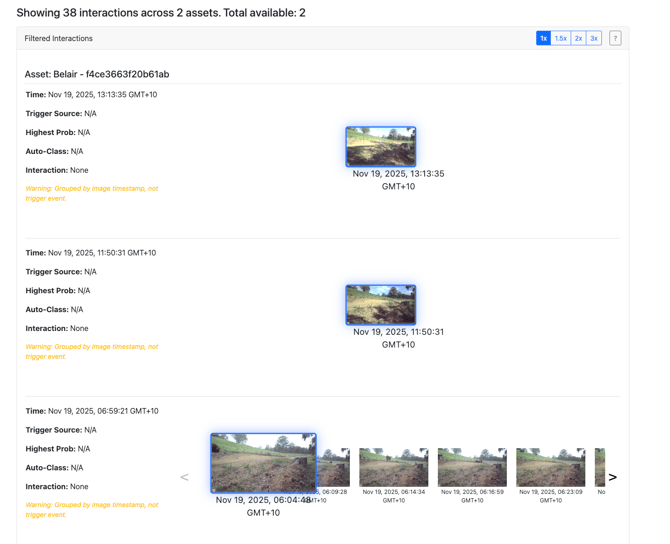
- All the interactions are grouped together by time windows of 10 minutes from image to image. You can click on any of the images and then use the keyboard up, down, left, right keys to easily skip between images in interactions and seperate interactions: